
New: Panorama View to see every listing at a glance
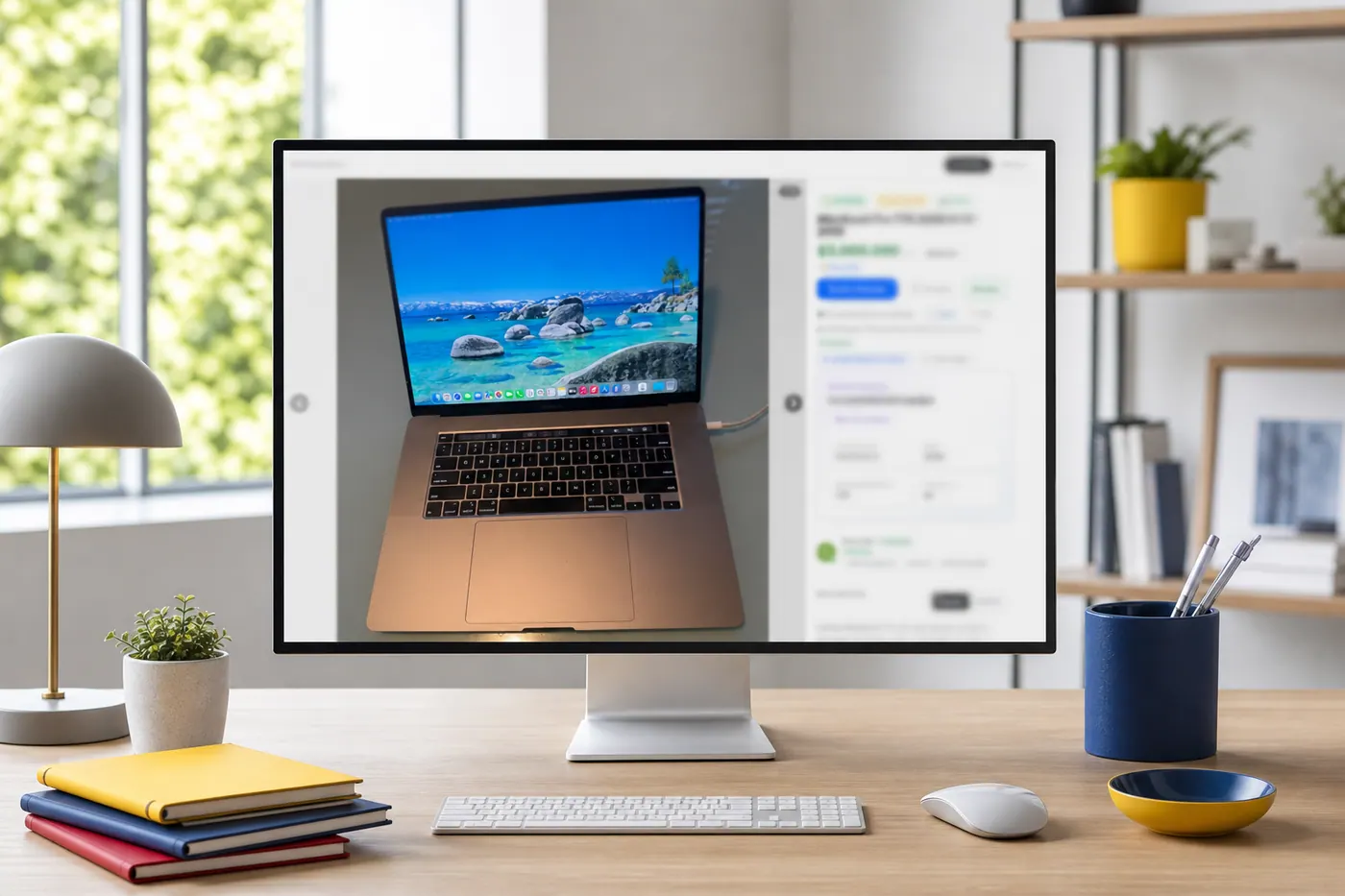
On desktop, photos and details now live side-by-side. Panorama View is the new default, and Classic View is still just a click away.
IDIOMA DEL ARTÍCULO
Showing original language
Opening an ad should answer the important questions in seconds: what is being sold?, what does it look like?, how much does it cost?, where is it, and how do I contact the seller? On a computer, the answer used to be split between the gallery and the content that appeared further down.
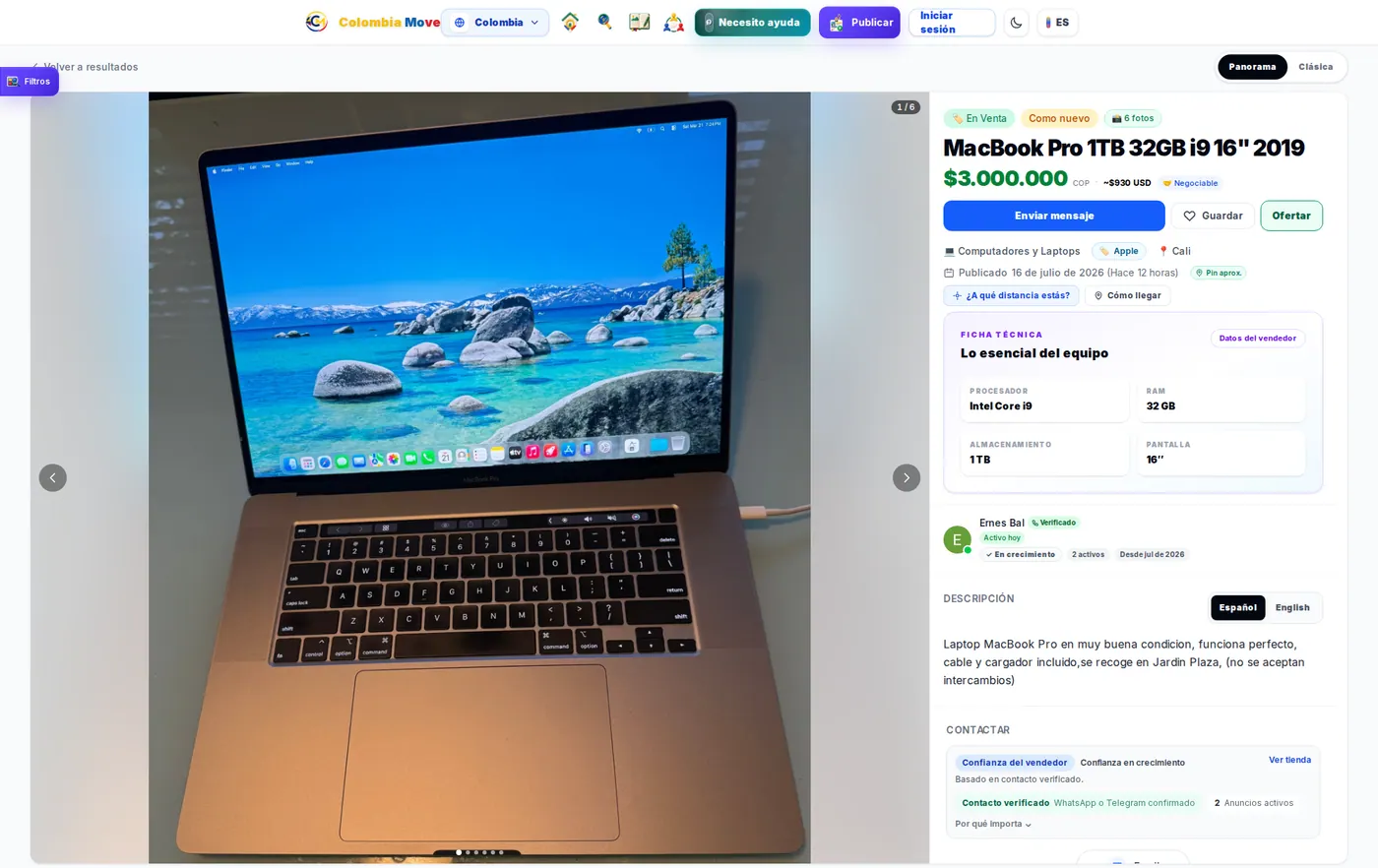
So we present Panorama View: a new desktop experience that puts photos on the left and decisive information on the right. The main image, title, price, city, actions, and technical specifications are grouped together, without forcing you to scroll through a long page first.
What changes with Panorama View
On large screens, the page is now divided into two clear zones. The gallery takes advantage of the available space without competing with the content. The right panel brings together the ad's status, specifications, seller, description, and contact methods. Each side can do its job without one pushing the other out of view.
The first screen also keeps the most frequent decisions visible: send a message, save the ad, or make an offer when that option is available. The goal is simple: less searching within the page and more clarity before contacting.
Why we made it
Buyers compare before they write. They look at the product's condition, check the price, confirm the city, and look for details that help them decide if it's worth starting a conversation. On a large monitor, there's already space to present all of that at the same time; Panorama uses that space instead of turning the experience into a narrow, long column.
We also wanted to preserve visual context. If a specification says “32 GB of RAM” or “16-inch screen,” the photo stays next to it as you read. This makes it easier to verify, compare, and go back to another image without losing the thread of the conversation.
Panorama is the default view on desktop
The new layout is activated by default on computers with enough space. You don't have to configure anything to try it: open an ad from the results and you'll see the selector Panorama / Classic at the top right.
The preference is saved in that browser and device. If you have an account, you can also change it from your profile preferences. This way, each person can choose between a compact desktop reading experience and the familiar vertical experience.
How to go back to Classic View
Switching views takes seconds
- Open any ad from a computer.
- Look for the selector in the top right corner of the page.
- Choose Classic to go back to the gallery at the top and details below.
- Choose Panorama when you want to bring back the side-by-side view.
Classic View is not a reduced version or a temporary workaround: it remains a complete option. We kept both because not everyone reads or compares in the same way.
Messages without losing sight of the ad
An additional fixed panel would have compressed the photos and details too much. In Panorama, messages open as a floating window over the right side. You can read the conversation, write, and minimize it without turning the page into three narrow columns.
The message button remains next to the main actions. If you haven't logged in yet, we'll take you to your account login and save your path back. On mobile, messaging continues to use its full-screen flow.
On mobile, we're keeping the experience that already works
Panorama is a specific improvement for desktop. On mobile, the photo remains at the top and the information appears below in the order optimized for a narrow screen. The selector doesn't take up space, and there's no second column trying to fit where it doesn't belong.
This criterion also applies to small tablets: the design changes only when the width allows both sides to be comfortable to read and touch.
More than a visual change
Panorama accompanies other tools created to reduce friction. If you're publishing, the ad assistant helps turn a simple explanation into a clear draft. If you're searching, the guide to saved searches and alerts shows how to find new options without manually browsing the entire catalog.
We want your feedback
The design is now available, but it's not finished forever. We want to know if you find the data faster, if the photo-to-details ratio feels right, and if the message window lets you work comfortably.
Tell us what works and what you would adjust in the contact form. Include your computer type, browser, and a screenshot if you see anything strange. This context helps us turn concrete feedback into real improvements.
Frequently Asked Questions
What is Panorama View?
It's the new ad layout for desktop. It shows the gallery on the left and the main details on the right so you can view both at the same time.
How do I switch to Classic View?
On a computer, use the Panorama / Classic selector in the top right corner. The change is immediate and saved in that browser and device.
Does Panorama View change the page on my cell phone?
No. On phones and narrow screens, the vertical view optimized for mobile is preserved, with the photo at the top and content below.
Where do messages appear in Panorama?
When starting a conversation from a desktop, messages open in a floating window over the right panel. You can minimize it to see all the details again.
Is the view I choose saved?
Yes, the choice is remembered in the browser and device where you changed it. Users with an account can also find the same option within their profile preferences.




Comments
Loading comments...
Checking sign-in status...